Palettes
Palettes are a way to organize colors in your projects.
Pixelorama includes two pre-made palettes on most platforms, Default and Pixelorama. These palettes can be freely modified.
There are two types of palettes: Global and Project palettes. Global palettes are stored on disk, in Pixelorama's data folder. Project palettes are stored in project (.pxo) files.
Undo/redo is only supported for project palettes. Changes to global palettes are permanent and cannot be undone.
By default, making any changes to a global palette creates a project palette copy. If you wish to disable this behavior, you can do so by going to the Edit menu, Preferences, and under the Palettes category, disable the "Make global palettes read-only" option.
You can also create a global copy of a project palette by enabling the "Create a global copy when confirming the dialog" option on the Edit Palette dialog.
Palettes panel

The top of the panel consists of tools (used to edit colors of the palette), Palette selector, Edit palette button and Add new palette button.
The main section is the Palette grid, displaying all colors present in the selected palette.
Creating a new palette
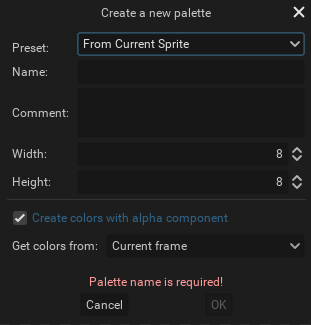
A new palette can be created by clicking Add new palette button.
Preset
You can select one of the presets to initialize a new palette with colors.
| Preset | Description |
|---|---|
| Empty | Empty palette with no colors. |
| From Current Palette | Palette will be created with colors copied from the selected palette. |
| From Current Sprite | Colors will be imported from the currently opened image. |
| From Current Selection | Colors will be imported from the current selection. |
Name
The name of the palette is also used as a palette filename.
Comment
The palette's description. Default Pixelorama palettes use this field to credit palette authors.
Width and Height
Palettes have set width and height (can be resized later) which define their grid size. Allowed values are from 1 to 64.
Create colors with alpha component
If this option is not toggled on, colors will be imported without alpha channel and transparency is ignored.
Get colors from
You can limit colors import to just some or all cels (as seen in the animation timeline).
| Option | Description |
|---|---|
| Current frame | Colors imported from currently selected frame and all of its layers. |
| Selected cels | Colors imported only from selected cels. |
| All frames | Colors imported from all frames and their layers. |
Editing palette metadata
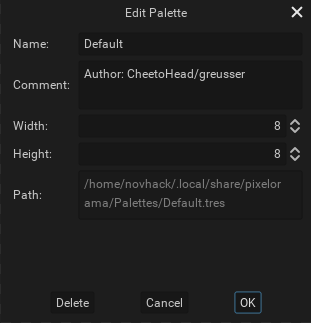
Currently, selected palette metadata can be edited with Edit palette button.
The majority of properties are identical to those in the Create New Palette’` dialog.
If the palette size is reduced, the positions of all colors will be reset to the beginning of the palette. If some colors don't fit in the new size they will be removed!
Name
If the palette name is changed the file name will also be changed accordingly.
Path
Displays where exactly in the file system the palette file is located.
Delete button
Permanently removes the palette from the file system.
Palette grid
Displays all colors present in the palette. You can interact with colors in the grid as follows:
| Interaction | Description |
|---|---|
Left click | The color will be selected as the left color. |
Right click | The color will be selected as the right color. |
Double click | Double-clicking an existing color opens a color picker to change its color. |
If the palette size is greater than 8×8 it can be panned in the grid either with sliders or Middle click + Mouse drag.
Tools
Tools allow you to edit colors in the palette.
| Button | Tool | Description |
|---|---|---|
+ | Add a new color | Left mouse click adds left tool color. Right mouse click adds right tool color. |
- | Remove a selected color | Left mouse click removes left selected color. Right mouse click removes right selected color. |
↓ | Palette sorting options | A drop-down appears, containing the available sorting options. You can either apply the new color order directly to palette or to a copy of it. |
Colors movement
Colors can be moved and copied around in the palette grid.
| Shortcut | Movement description |
|---|---|
Mouse drag | The color swaps with the color it is dropped on. |
Shift + Mouse drag | The color is inserted at the drop position. If dropped on another color, the original color is moved to the right with every color next to it. |
Ctrl + Mouse drag | The color is copied at the drop position. If dropped on another color, the original color is overwritten. |
Palettes import
To import a palette, either drag-and-drop a palette file into Pixelorama window or use File > Open dialog.
An imported palette will be converted to a Pixelorama palette format, stored in the Pixelorama data folder and added to the palette selection in Palettes panel.
The only exception to import behavior is Image palette. Importing an image to Pixelorama will open Import Options dialog in which you can select Import as > New palette to process the image into a palette.
You can import any image as a palette and extract colors from it. Every color from the image will be added to the palette only once. With bigger images, it may take longer to complete.
Supported formats
| Format | File extension |
|---|---|
| Pixelorama palette | .json |
| GIMP GPL | .gpl |
| PAL | .pal |
| Image palette | .png, .bmp, .hdr, .jpg, .jpeg, .svg, .tga, .webp |
Palette format detection uses file extensions to determine how to parse palette formats. An incorrect extension will result in an import error.
Palettes created in versions of Pixelorama prior to 1.0 cannot be reimported. The save format was changed from .tres to .json, due to security concerns. In order to convert an old palette to a new one, you can export it as an image from version 0.11.4, and import that image to the newest version.